

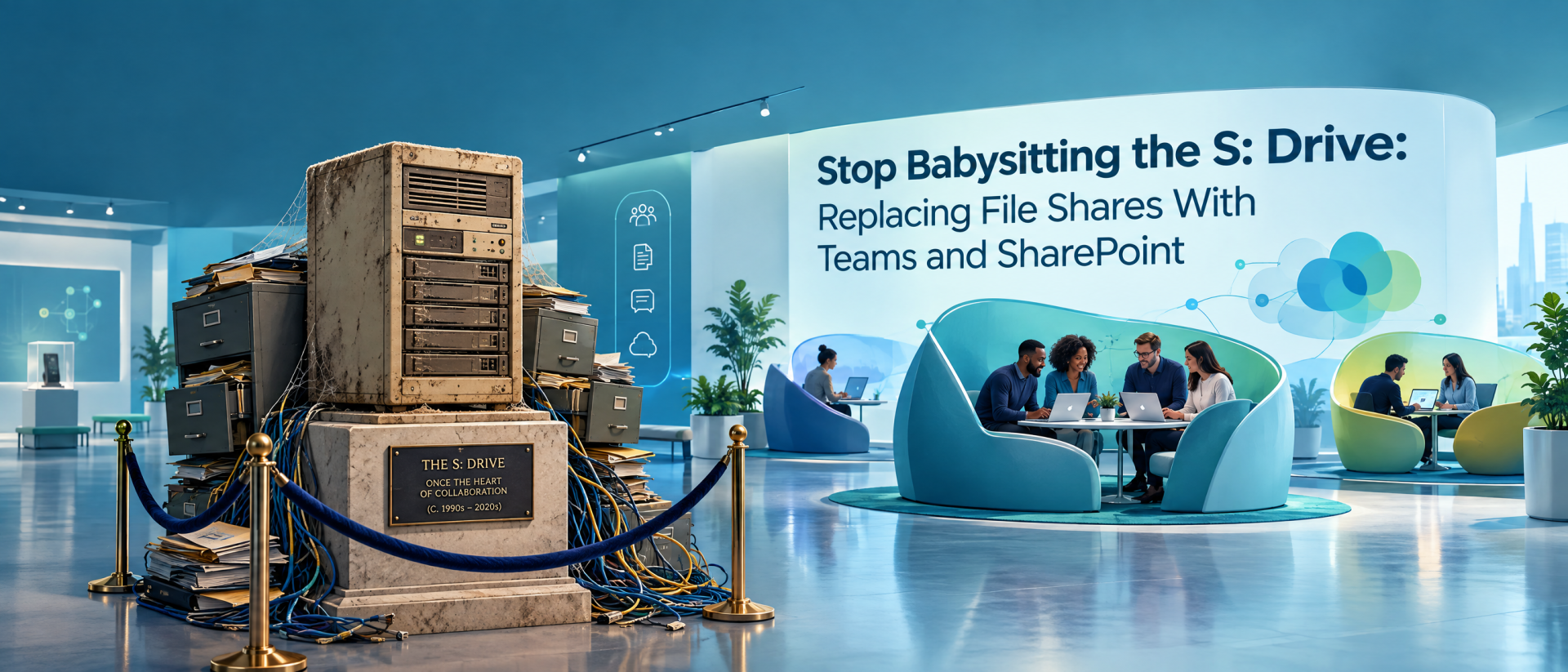
Before you drag twenty years of folders into Microsoft 365, let’s talk about what a successful migration actually looks like.
For decades, the shared network drive has been one of IT’s most durable institutions.
There is Finance. There is Operations. There is HR. And somewhere, buried approximately 14 folders deep, there is probably a directory named: Old Files\Archive\Old Archive\DO NOT DELETE\Final\Final2
Nobody knows who created it. Nobody is brave enough to delete it. It may actually predate several current employees.
Traditional file shares did their job remarkably well. They gave businesses a central place to store files, apply permissions, and avoid having every important spreadsheet live exclusively on someone’s desktop.
But the way businesses work has changed. Employees collaborate from different locations and devices. Documents move between Teams meetings, email conversations, projects, departments, and outside partners. Security and compliance expectations have changed too.
In many organizations, the file server never really changed with them.
Replacing legacy file shares with Microsoft Teams and SharePoint is therefore less about moving folders to the cloud and more about reconsidering how people should find, share, protect, and collaborate on information.
And that distinction matters enormously.
The Network Drive Solved Yesterday’s Problem
A traditional file share is fundamentally based on a location.
If you need a document, you need to know where somebody put it.
Maybe it is: S:\Operations\Customers\Acme\Projects\2025\Documents
Or perhaps Dave put it under: S:\Shared\Misc\Dave\New Folder (3)
Good luck.
That hierarchical approach made sense when most employees worked inside the same office, applications ran locally, remote access meant VPN, and the primary goal was simply giving multiple people access to the same collection of files.
Modern collaboration asks more of the platform.
Microsoft’s current migration guidance specifically positions SharePoint, Teams, and OneDrive as destinations for file-share content. Microsoft also emphasizes that planning should begin by assessing the existing environment, deciding how source content maps to the destination, identifying redundant or obsolete information, and planning user onboarding. [learn.microsoft.com]
That is an important clue about what a successful modernization project really involves.
Moving the bytes is only part of the job.
SharePoint and Teams Are Not Just a File Server Wearing a Cloud Hat
This is one of the most common mistakes organizations can make.
They look at a 4 TB network share with 700,000 folders and think, “Let’s put that in SharePoint.”
Technically moving files is one question. Designing a useful Microsoft 365 environment is another.
SharePoint provides the underlying document-management and collaboration capabilities, while Teams can provide a collaboration-oriented interface where users communicate and work with shared content. OneDrive typically makes more sense for an individual’s work files. Microsoft’s Migration Manager can send file-share content to SharePoint, OneDrive, or a Teams location. [learn.microsoft.com], [learn.microsoft.com]
The destination should consequently reflect what the information actually is and how people use it.
A departmental policy library may belong in SharePoint. A working project involving a group of employees might fit naturally into Teams. Files that belong primarily to one employee may be appropriate for OneDrive.
Simply recreating twenty years of network-drive sprawl inside Microsoft 365 can preserve all the old problems while giving them a shiny new URL.
Congratulations. Your junk drawer is now cloud-enabled.
The Real Benefit Is Better Collaboration
The biggest reason to modernize is not that “cloud is newer.”
It is that information can become part of the place where work happens.
Consider the typical legacy workflow. Someone opens a spreadsheet from a file share, changes it, saves a copy, and emails it to three colleagues. One person replies with another copy. Someone else saves that version to the shared drive.
Soon the organization is conducting a small forensic investigation to determine whether Budget_FINAL_v8_REALLYFINAL.xlsx is authoritative.
Placing shared business content in Microsoft 365 creates the opportunity to build collaboration around the document instead of constantly moving independent copies of it between systems and people.
That can also simplify the experience for users. Instead of thinking primarily in terms of drive letters and server paths, information can be organized around departments, projects, business processes, and Teams.
The goal is not merely “files in the cloud.”
The goal is making information easier to use.
Modernization Is Also a Governance Opportunity
Old file servers have a tendency to accumulate history.
That history might include duplicate folders, abandoned projects, forgotten employee directories, obsolete exports, mysterious databases, ten copies of the corporate logo, and a PowerPoint presentation from 2009 explaining why social media is probably a fad.
A migration creates an unusually valuable opportunity to ask a question organizations often avoid:
Do we actually need all of this?
Microsoft recommends assessing file-share content before migration and deciding whether material is redundant, outdated, or still relevant. It also highlights target design, permissions, sharing, change management, communications, and user onboarding as parts of migration planning. [learn.microsoft.com]
That makes modernization an information-governance project as much as a technical one.
Some files should move. Some should be archived. Some may need different ownership or permissions. Some can probably disappear according to the organization’s approved retention and deletion policies.
The migration is a chance to make those decisions deliberately instead of carrying every historical accident into the next platform.
“How Big Is This Project?” Depends on What You Want to Accomplish
This is where file-share modernization gets interesting.
The scope can be surprisingly narrow.
Perhaps an organization has one troublesome departmental share. The accounting team wants better remote access and collaboration, for example, while everything else can remain where it is for now.
That can become a focused project.
At the other extreme, an organization might decide that retiring file servers is part of a larger Microsoft 365 modernization initiative. Now the project could include thousands or millions of files, multiple business units, permission redesign, Teams architecture, SharePoint information architecture, identity considerations, compliance requirements, external sharing, training, governance, and the eventual retirement of infrastructure.
Same basic idea. Very different project.
Microsoft’s Migration Manager supports individual and bulk migration tasks and can use multiple migration agents to scale a project. It also provides prescans, reporting, task management, and other controls to help administrators identify and manage migration work. [learn.microsoft.com], [learn.microsoft.com]
This is why estimating a migration based exclusively on “How many gigabytes do you have?” misses much of the picture.
Five hundred gigabytes of clean, well-organized departmental files could be considerably simpler conceptually than 100 gigabytes of tangled permissions, abandoned folders, and data nobody is willing to claim.
The hard part is frequently context.
You Do Not Have to Move Everything at Once
There is no rule saying the company file server must disappear during one dramatic weekend.
In fact, staging the implementation is often a perfectly sensible strategy.
An organization might begin with a department or use case where the benefits are obvious. That first stage can help validate the destination architecture, permissions, communications, migration process, and user experience before expanding into other areas.
A broader program might proceed department by department, business function by business function, or workload by workload.
This also creates room to separate migration from cleanup when necessary. Not every information-governance problem accumulated over fifteen years needs to be solved during the same project phase.
Microsoft itself describes file-share migration as a progression involving planning, assessment and remediation, destination preparation, migration, and user onboarding. [learn.microsoft.com]
In other words, “select all, copy, paste, go home” is not the official methodology.
There Are Technical Details Hiding Under the Floorboards
Focusing on the why does not mean the technical details disappear.
Quite the opposite.
Permissions have to be understood. Destinations need to be designed. Existing data should be assessed. Storage needs to be considered. Users need identities and appropriate access. Unsupported or problematic content needs to be discovered. Applications, shortcuts, scripts, integrations, or business processes may still expect an old network path to exist.
Even capacity planning deserves attention. SharePoint Online has service-specific storage and site limits that organizations should account for when designing their architecture. Microsoft currently documents support for individual files up to 250 GB for file-share migrations using Migration Manager and the SharePoint Migration Tool. [learn.microsoft.com][learn.microsoft.com]
None of this means a migration has to become a gigantic consulting project.
It means the organization should discover the complications before migration day.
A twenty-minute conversation with a department owner can sometimes reveal something a storage report never will: “Oh, that folder? Our ERP imports a file from there every night.”
That is useful information to learn on Tuesday afternoon.
It is considerably less charming to learn it at 8:07 Monday morning.
Don’t Forget the Humans
The technical migration can execute perfectly and the project can still fail in the eyes of users.
Imagine logging in Monday and discovering that the network drive you have used for twelve years is gone.
The IT department sends an email explaining that everything is now better.
You are unconvinced.
Microsoft specifically recommends incorporating user onboarding into migration planning and communicating early and regularly about the impact of the change. [learn.microsoft.com]
That matters because employees do not experience a migration architecture. They experience questions.
Where is my stuff?
Where should I save this now?
Should this go in Teams, SharePoint, or OneDrive?
Can somebody outside the company access this?
Why can’t I find the folder I used yesterday?
Good modernization projects answer those questions before users have to ask them.
Training does not have to mean a three-hour seminar on SharePoint administration. Often, people need a simple understanding of the new model, where their information lives, how they collaborate with it, and who to contact when something does not make sense.
Why Bring in an MSP?
For a small, clean environment, an internal IT team with the right Microsoft 365 expertise may be entirely capable of handling a migration.
But complexity increases quickly.
The challenge is rarely just operating a migration utility. It is deciding what should move, where it should go, how access should work, what should remain behind, what business dependencies exist, how the rollout should be staged, and what the finished environment should look like.
That is where working with an experienced managed service provider can be valuable.
An MSP can help assess the existing environment, develop the destination design, identify likely migration problems, establish a realistic scope, execute migration stages, and help users transition into the new way of working. Microsoft itself identifies migration service providers as one of the resources organizations can consider during file-share migration planning. [learn.microsoft.com]
For organizations that want guidance or implementation assistance, Ethixa Solutions can help plan a file-share modernization project around the organization’s actual goals rather than forcing every migration into the same template.
Maybe the right first move is one department.
Maybe it is an organization-wide modernization program.
Maybe the most valuable first step is simply figuring out what is hiding on the file server.
An assessment can turn “We should probably do something about that server” into a defined project with boundaries, priorities, risks, and stages.
The Best Migration Is Not Necessarily the Biggest One
Replacing traditional file shares with Teams and SharePoint does not have to be an all-or-nothing decision.
The real objective is to give the organization a better way to work with its information.
For one company, that might mean moving a single collaborative department into Microsoft 365. For another, it could mean systematically retiring legacy file infrastructure and redesigning how documents are governed across the business.
Both can be successful.
Start with the outcome. Understand the data. Choose the right destinations. Decide what deserves to make the trip. Plan for the people who actually use the files. Then choose a migration scope that matches the organization’s appetite and objectives.
Your network drive served you well.
You don’t have to be mean about retiring it.
Just please don’t migrate Old Archive\Final2 without asking what is in there first.
Leave a Reply